
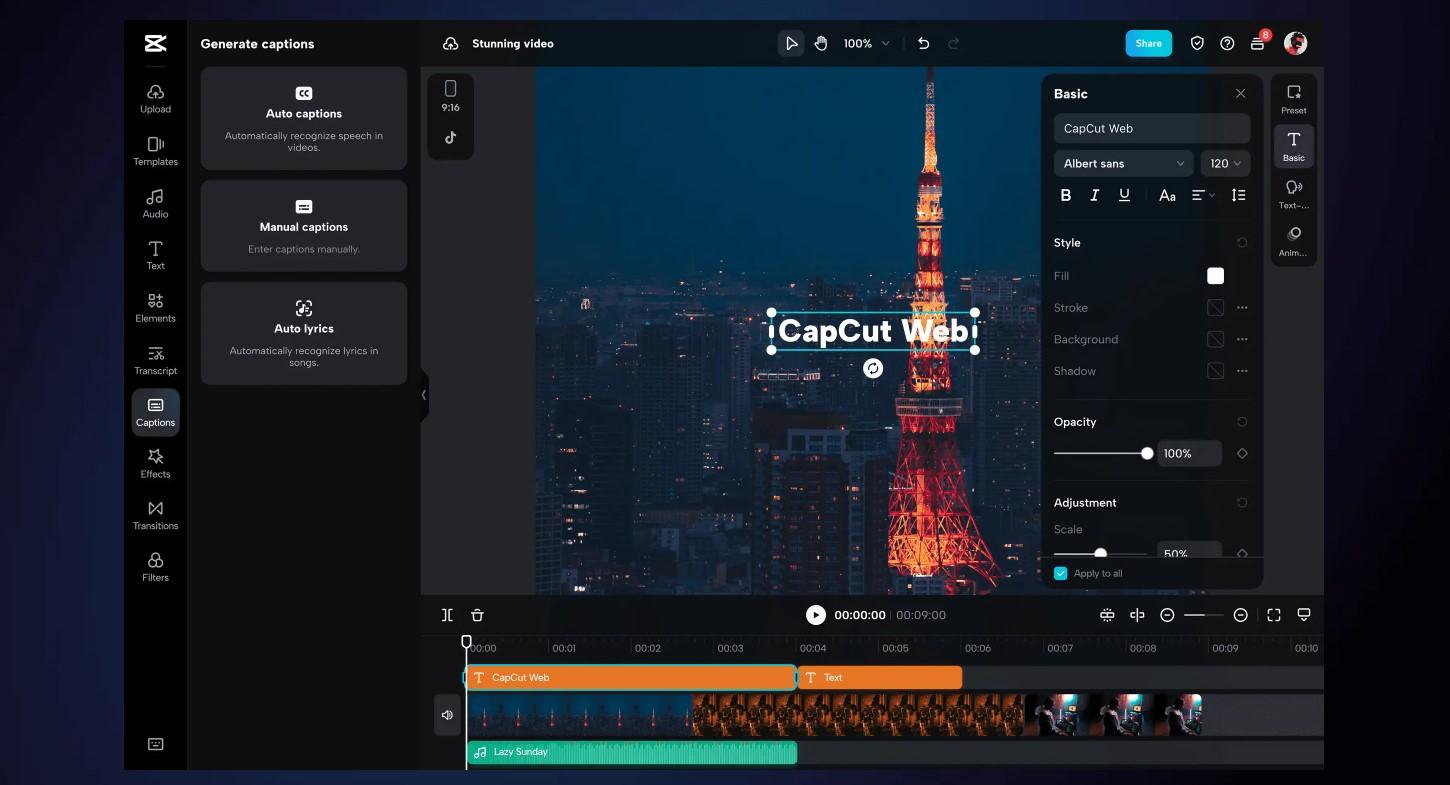
Is CapCut safe for kids? Technically, yes, but it poses privacy and content risks that parents must manage. As a digital safety analyst, my verdict is that while CapCut is a powerful creative tool, its lack of built-in parental controls exposes unsupervised children to unmoderated content. Simply put, it is safe to use as an editor, but unsafe to explore alone.
For the busy parent, here is the 30-second safety breakdown:
| Feature | Risk Level | The Reality |
|---|---|---|
| Editing Tools | ✅ Safe | Excellent for creativity and learning skills. |
| Templates Feed | 🛑 High | A “TikTok-lite” feed with unfiltered music & trends. |
| Data Privacy | ⚠️ Caution | Owned by ByteDance (same parent co. as TikTok). |
| Parental Controls | ❌ Zero | No built-in screen time limits or content filters. |
CapCut Has No Parental Controls. You Do.
🛡️ FamiSpy fills the safety gap. Monitor live screen activity and stop hidden dangers instantly. Protect your child today.
VIEW DEMOIs CapCut Social Media? Understanding the “Templates” Risk
Most parents assume CapCut is a simple, offline utility like Microsoft Word or Photoshop. It is not.
The moment your child opens the app, they see a tab called “Templates.” This feature effectively turns the video editor into a social media platform.
Even if you’ve banned TikTok, CapCut gives kids a backdoor into that exact same content world. They can scroll through millions of user-generated videos, like them, and read comments. Since these are uploaded by users, your child can easily stumble upon suggestive dance trends or songs with explicit lyrics just by searching for a “cool transition effect.”
Is CapCut Safe for Kids? The 3 Main Safety Risks
Beyond the editing features, there are specific CapCut dangers that parents need to be aware of regarding privacy and mental health.
1. Body Image Concerns & Mental Health
CapCut features “Retouch” tools that are terrifyingly effective. With a single slide of a finger, a 12-year-old can slim their jawline, whiten their teeth, and reshape their body.
When a child gets used to seeing this “perfected” version of themselves, real life starts to feel disappointing. It trains them to believe they need to be digitally “fixed” before they are worthy of being seen online.
2. CapCut Privacy & Data Collection Issues
You can’t discuss CapCut privacy without mentioning its parent company, ByteDance.
The app collects significant data, device IDs, usage habits, and potentially location info. While standard for many apps, the connection to TikTok makes privacy boundaries critical. If you are uncomfortable with your child’s data potentially being stored on international servers, this is a major red flag.
3. Stranger Danger: Comments and Interaction
Does CapCut have chat? No, it doesn’t have Direct Messages (DMs), which is a huge plus. However, the comment sections on public templates are wide open.
If your child posts a video to the template feed (which the app encourages), strangers can comment publicly. It’s not a private chat, but it is still an unvetted contact with adults, something no parent wants to discover too late.
CapCut Age Guide: Is It Safe for 10 to 13-Year-Olds?
The official age requirement is 13+, but many younger kids ask to use it. Here is a realistic maturity guide:
- Is CapCut safe for 10-year-olds? No. The “Templates” feed is too unpredictable. Stick to safer alternatives like PBS Kids ScratchJr or Apple Clips.
- Is CapCut safe for 11 or 12-year-olds? Co-Pilot Only. They can use it, but only on your phone or a family iPad kept in the living room, never alone in their bedroom.
- Is CapCut safe for 13+? Yes, with Setup. They are old enough to use the tools, but you must lock down the privacy settings first.
Why You Need Parental Controls for CapCut
The most frustrating part of this app? CapCut has absolutely no built-in parental controls. You cannot set a timer, you cannot block the Templates feed, and you cannot filter keywords.
They essentially handed you a sports car with no brakes.
Since the app won’t police itself, you need a tool like FamiSpy to provide those missing brakes through discreet monitoring.
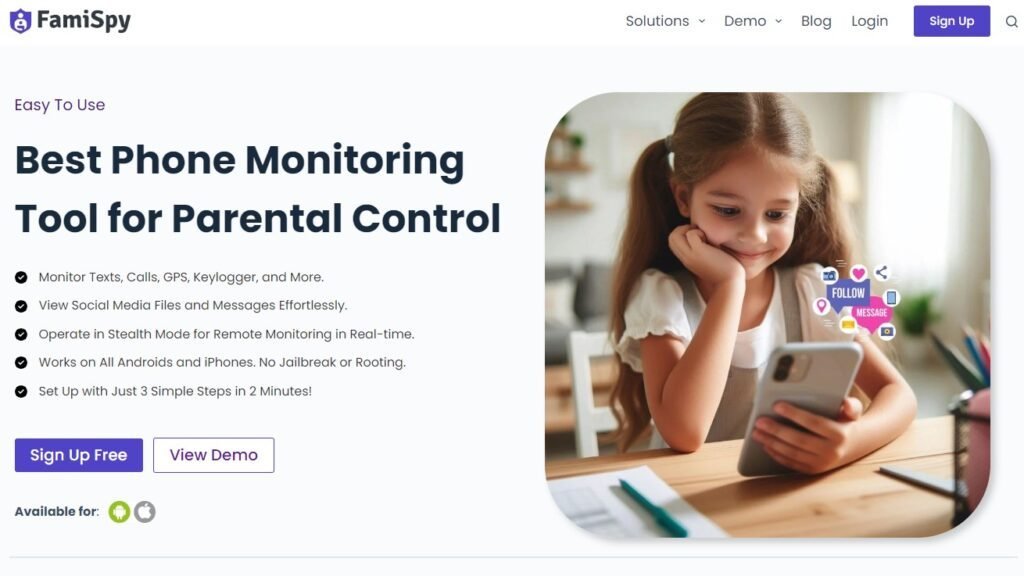
- Live Screen (Real-Time Monitoring): Instantly see if they are actually editing a video or just scrolling through the risky, TikTok-style “Templates” feed in real-time.
- App Daily Usage Report (Check Habits): CapCut is addictive. View detailed usage graphs to spot if a “creative hobby” has quietly turned into a 3-hour doom-scrolling session.
- Keylogger For All Apps (Monitor Text): See exactly what they type. Catch if they are searching for mature templates or chatting with strangers in the comments before it’s too late.
How to Make CapCut Safe: Step-by-Step Settings
If you decide to allow the app, do not just hand over the phone. Spend 2 minutes adjusting these CapCut safety settings to protect their privacy.
1. Disable Location Access
Go to your phone’s Settings > CapCut > Location. Turn it to “Never.” A video editor does not need to know where your child is sleeping. Period.
2. Limit Photo Permissions
Don’t give the app access to “All Photos.” Select “Limited Access” (or Selected Photos only). This way, the app can only see the 5 videos your child wants to edit, not the photo of their passport or family vacation.
3. Unlink TikTok Account
Go to the Me tab > Manage Account. If it says “Link TikTok Account,” leave it unlinked. Connecting them just creates a super-highway for data sharing and public exposure.
FAQ About CapCut Safety
Final Verdict: Is CapCut Safe for Kids?
So, is CapCut safe for kids? It’s a tool, not a toy. If used for specific creative projects under supervision, it’s fantastic. However, if treated like a digital babysitter, it becomes a privacy nightmare.
Your Immediate Next Steps:
- Check their age (13+ is best).
- Change the Photo and Location permissions now—apps often reset these after updates.
- Install FamiSpy to fill the safety gap that ByteDance left wide open.
Encourage your child to create videos, but ensure all safety measures are in place.
Don’t Miss:
- Is Discord Safe for Kids? An Expert Safety Guide for Parents
- Snapchat Sexting: A Parent’s 2025 Guide to Risks & Safety
- Best Apps for Parents to Monitor Social Media and Keep Kids Safe
- Is Pinterest Safe For Kids? A Parent’s Complete Safety Guide
- Is Twitch Safe for Kids? What Every Parent Should Know
- GG Meaning: What Every Parent Needs to Know About Slang